If you are having problems running the DVD's search features please review the following items.
XPSP2 default security
Any locally viewed web page that contains active content will be stopped from running.
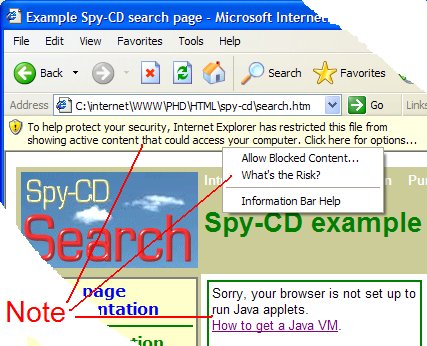
- At the top of the page in the Information Bar you will see this warning:
| To help protect your security, Internet Explorer has restricted this file from showing active content
that could access your computer. Click here for options... |
To enable active content, click on this message and then select:
Example showing Internet Explorer trying to run a Java applet locally:
- You will also be asked to OK this message:
| Allowing active content such as script and ActiveX controls can be useful, but active content might also
harm your computer.
Are you sure that you want to let this file run active content? |
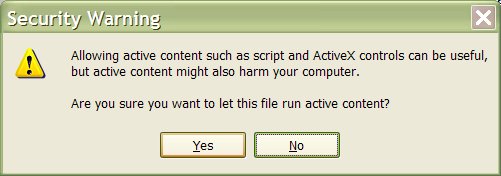
After all this, the active content should run.
Note that the active content is only enabled for this Internet Explorer window.
If you close this window and come back again you will have to go through the same process again.
However, all further active content in this window is enabled (unless you navigate to non-HTML pages
such as XML).
Java Virtual Machine
What's a Java VM? Why do I need it?
You need a Java Virtual Machine (VM) for your browser if you want to run Java applets,
such as phdcc's search engine for CDs or navigation tool.
Full details of how to get a Java VM.
Why does Microsoft not supply its own Java VM?
Microsoft no longer distribute their Java VM,
although you can update an installed Java VM at Windows Update.
For some versions of Windows, Windows Update Catalog will let you download a VM installation/update - do an advanced search for "VM".
However, software developers (such as PHD Computer Consultants Ltd)
who use Microsoft Java development tools can
supply the Microsoft Java VM "in conjuction with" or "as a part of" our software products.
Instructions
If you are trying to use phdcc's Java applet software
provided to you on CD, then follow Microsoft's instructions below to download and install
the Microsoft Java VM.
If you are a licensed user of phdcc's Java applet software,
then we recommend that you provide one or more Java VM installation programs on any CDs
containing the phdcc software.
We recommend that you do this because some of your users may not have a Java VM installed,
or their Java VM may need updating. Providing a Java VM on CD makes it easy to install,
saves a large download and makes a Java VM on computers that are not connected to the Internet.
Java VM options:
Sun Java Plug-in: download the latest release J2SE JRE from here for the platforms that you want to support.
Microsoft Java VM for Internet Explorer for Windows 95/98/Me/XP - download from this page.
Always provide a link to our How to get a Java VM page, http://www.phdcc.com/getjvm.htm.
Microsoft instructions |
Microsoft Virtual Machine for Microsoft SDK for Java and Microsoft VJ++ Developers
(Build 3809, released 11 December 2002)
Installation prerequisite for all users Microsoft Internet Explorer 4.01 or later must be installed in order to use this version
of the Microsoft VM.
Installation prerequisite for Windows NT users Windows NT4 Service Pack 3 or later must be installed prior to installing the
Microsoft VM on Windows NT 4.0.
Installation for Windows 2000 users The Microsoft VM in the Windows 2000 operating system can only be updated with a
Windows 2000 hotfix or service pack release. A description of the Windows 2000
Windows File Protection (WFP) feature can be found in Microsoft Knowledge Base (KB)
article number 222193. 222193.
- If
you have run any Java applets in the current browser session, exit and
restart the browser. Return to this page to continue with the download
procedure.
- In the list below, select the self-extracting file that you wish to download.
- When prompted, save the file to your hard drive.
- Double-click the downloaded file on your hard drive, and follow the instructions that appear.
- WARNING: Please note that once you have installed the updated Microsoft VM it cannot be uninstalled.
Microsoft VM build 3809 for Windows 95/98, Windows Me, Windows NT 4.0 and Windows XP 5.5 MB.
(All supported language versions are included in this download.)
Last updated December 11, 2002 |
Install Java VM:
To install the Microsoft JVM click here.
An update to version 3810 is available from Windows Update
Java and all Java-based marks are trademarks or registered trademarks of
Sun Microsystems, Inc. in the U.S. and other countries. |