|
Topics:
What is Java VM? | Which
Browser is best for this DVD? | Windows® XP and JVM
| How to get JVM | JVM Options
| JVM Downloads | Sun® JVM
| Microsoft® JVM | Updating Sun®
JVM | Updating Microsoft® JVM | Switching
JVM in Internet Explorer®
System Requirements - Technical Data
This DVD is designed
to be as cross platform compatible as possible.
You will need the
following minimum computer set up to run this DVD.
1. An IBM® compatible
computer running Microsoft Windows® 98SE (Second Edition) or later,
with Microsoft Internet Explorer version 5.x or later; or Netscape 7.x
or later. You will also need Java Virtual Machine (JVM) version 1.3.x
or later browser plug-in with Java enabled on your browser and computer.
2. A MAC® using
the following configurations: (See the Information
File for more on this.)
MacOS X:
This DVD must be run in Netscape® 7.1 or Later (Available from: www.netscape.com
) with Apple® Java (Available from: http://www.apple.com/java
)
MacOS 9.2.x:
This
DVD must be run in Netscape® 7.0.2 or Later (Available from: www.netscape.com
) with Apple® MRJ 2.2.6 (Available from: http://docs.info.apple.com/article.html?artnum=120209
).
MacOS 8.x.x -
9.1.x:
This is not supported, however a work around does exist. 1) This DVD must
be run in Microsoft Internet Explorer® 5.1.7 or later (Available from:
www.microsoft.com
) with Apple® MRJ 2.2.6 or later (Available from: http://docs.info.apple.com/article.html?artnum=120209
). 2) Run the Start.htm file from Microsoft Internet Explorer® ,
If you receive double characters when typing, simply click into another
open application and back to Microsoft Internet Explorer®, the double
characters will go away. 3) We recommend upgrading to MacOS 9.2.x for complete compatibility.
3. A DVD-ROM drive
(auto start should be enabled). Run start.htm.
4. This DVD has also
been tested in the following browsers: Mozilla 1.4 and Opera 7.
What's
a Java VM? Why do I need it?
You need
a Java Virtual Machine (VM) for your browser if you want to run Java applets,
such as the search engine used on this DVD.
A Java VM provides
a standard runtime environment to run Java programs safely. A
Java program (such as a Java applet) should be able to run on any computer
provided a VM is available.
If a Java VM is
installed in your browser and activated, then clicking here
should show a pretty swirling pattern on the top-left of the page.
Which browser is best for this DVD?
To use the Search
Utility on this DVD you will need to have a browser that runs Java, such
as Microsoft Internet Explorer version 5 or later, or Netscape Navigator
version 7 or later.
For some common browsers
such as Internet Explorer, installation of the Java Virtual Machine (VM)
is optional. If not installed, then an attempt to run the Search Utility
may prompt the installation of Java. See below for
details of how to get the Microsoft or Sun Java VMs.
Of the mainstream
browsers, Microsoft Internet Explorer is generally better for two reasons:
- It runs much faster,
which is important when accessing larger search databases.
- Internet Explorer
versions 4 or later let the Search Utility do word highlighting with
navigation arrows.
Why doesn't Windows® XP include
a Java Virtual Machine?
Windows® XP does NOT
include the Microsoft Java Virtual Machine (VM) for Internet Explorer.
A future service pack, SP1b may include the Sun Java Runtime Environment
VM.
Microsoft says it
has done this because the settlement of the Sun Microsystems litigation
provides for a phase-out of the Microsoft® VM. Whatever the politics
of the situation, the fact that a VM is not provided by default for Internet
Explorer will make Java programs such as Spy-CD less easy to use. Provision
of one or more VMs on the standard XP distribution would certainly be
a step forward.
How to get a Javaª VM
Java
VM options
Some browsers
originally came with a built-in Java VM. For browsers such as Netscape® 7
and Opera®, you usually have the option of including a Java VM in
your download.
However, Microsoft
Internet Explorer does not now include a Java VM, so you must download
one. Although Microsoft® has withdrawn their Java VM, you can update
or possibly install it from Windows® Update.
If you have a Java
VM already, then you may need to update it. For example, some
old Microsoft® Java VMs have problems running search applets
on CDs/DVDs. See below for upgrade instructions.
Java
VM downloads
If a Java
VM is not bundled with your browser installation, these are your download
options:
- Sun®
Java VM
- The Sun®
Java Plug-in is a Java VM for Microsoft® Internet Explorer, Netscape®
6/7 and other browsers.
Download the
Java Plug-in from Sun®, approx 7-9MB. If automatic detection
does not work, manually get the appropriate Java Runtime Environment
(JRE).
Installing this
Plug-in optionally installs the Java VM into both Internet Explorer
(IE) and Netscape 6/7 (N6,N7) / Mozilla. Close all browser
Windows® and restart your browser.
Windows®
only:
|
 |
The Java
VM Plug-in can be configured in the Control Panel. This displays
the Plug-in version and lets you activate/deactivate the Sun
Java VM in Internet Explorer and Netscape.
|
|
After installing
the Java Plug-in and restarting your browser, go to a page containing
a Java applet (e.g., here). You
should then see the Sun Java logo in the taskbar notification
area.
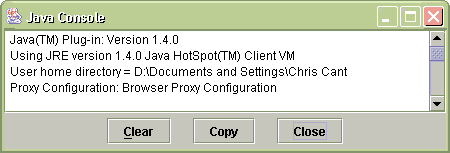
If you
double-click on the taskbar logo, then the Java Console window
appears. As shown below, this also tells you the Java
Plug-in version, ie 1.4.0 in this case. Some Java applets
will add further information to the Java Console which may
be useful if diagnosing runtime problems.
If the
Sun® Java logo is not in the taskbar, you probably need
to enable it in the Java Plug-in Control Panel - select "Hide
console" to show the taskbar logo but hide the console itself
until you want to see it.
|
If installed
in Opera®, select menu "Window+Special+Java Console" to
see the Opera Java Console window.
- Microsoft®
Java VM
- Microsoft®
no longer distribute their Java VM, although you can update an installed
Java VM as described below. See here for details of this policy. The XP SP1 CD
contained the Microsoft® Java VM; however SP1a does not.
A future SP1b will contain the Sun® JRE.
For some versions
of Windows®, Windows®
Update Catalog will let you download a VM installation/update
- do an advanced search for "VM".
- Apple Mac®
- Apple Mac®
OS X includes a Java VM.
For Classic Mac 9, download
the Mac® OS Runtime for Java (MRJ).
For further
information, see Apple's® main Java site and their developer
Java site.
Updating your Sun®
Java VM
To check
for updates, open the Java Plug-in Control Panel, select the Update tab
and click on the "Get Java Update" button. Your browser will now open
at the Sun® web site and tell you if there is an update available.
Alternatively, get
your current version number by opening the Java Plug-in Control Panel
or the Java Console, as described above. Compare this against
the latest J2SE version listed here.
If you need to do
an update, download the
latest version and install it. You do not need to uninstall
the previous version first, although it might be tidiest to do so.
Updating your Microsoft®
Java VM
| If
you already have the Microsoft® VM installed then you can update
it at Windows® Update. This is the preferred option as
it will by definition be up to date.
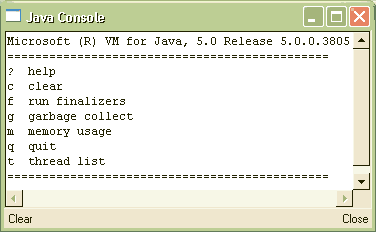
To find your
current Microsoft VM version, select menu "View+Java console"
in Internet Explorer. The version is the last number on the right,
ie 3805 in this example:
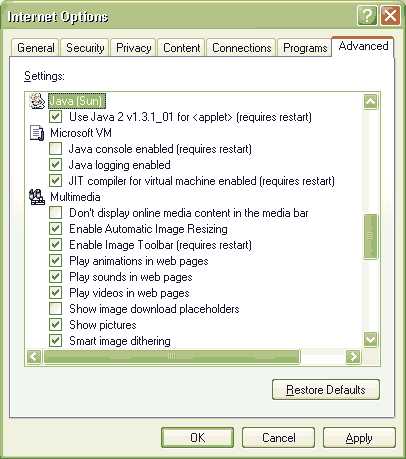
If the Java
Console menu option is not available, select menu "Tools+Internet Options"
Advanced tab, then scroll down to the "Microsoft® VM" (see
picture below right) and check the box "Java console enabled";
then close all browser Windows® and restart.
|
 |
Internet
Explorer: Switching between the Microsoft and Sun Java VMs
| If
both the Microsoft® and Sun® Java VMs are installed, you
can switch between them in menu "Tools+Internet Options" Advanced
tab. In the screenshot shown on the right, the Sun® VM
is in use (and so the Microsoft® VM is therefore disabled).
If you change any of these settings, then you need to close all
browser Windows® and start IE again. |
 |
Java and all Java-based
marks are trademarks or registered trademarks of Sun Microsystems, Inc.
in the U.S. and other countries.
Windows is a registered trademark of Microsoft Corporation in the United
States and other countries.
Return
to the top of this page.
|